Volunteer Flow
Serving pool, task queue, matching, and training — preview screens with sample volunteers.
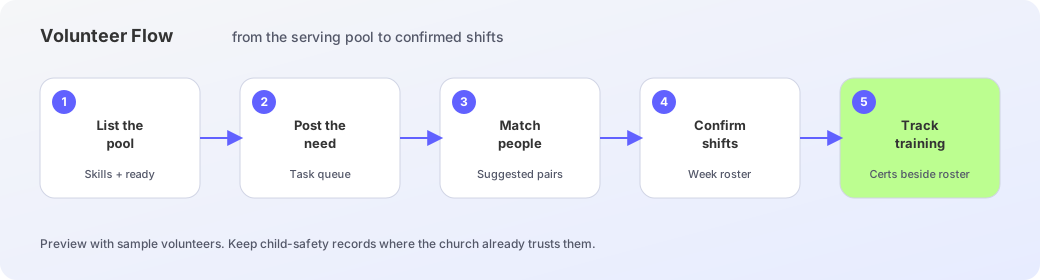
Volunteer Flow keeps greeting, kids, and hospitality in one place. The pool lists who can serve, the task board holds open needs, matching suggests pairs for the week, and the training hub tracks certs beside the roster.
Volunteer pool
Open Volunteer Flow for the pool. Cards show team, skills, ready or on-leave, and last served. Add a person or open a profile for hours, certs, notes, and a serving timeline.
Task queue
Task queue is a board of pending, active, and completed ministry needs. Each card carries priority, when it is needed, tags, and assignees. Move work across columns as Sunday approaches.
Match and confirm
Matching and commitment shows open needs, suggested pairings, and a week view. Confirm shifts or notify volunteers. Insights call out who recently finished training for a role.
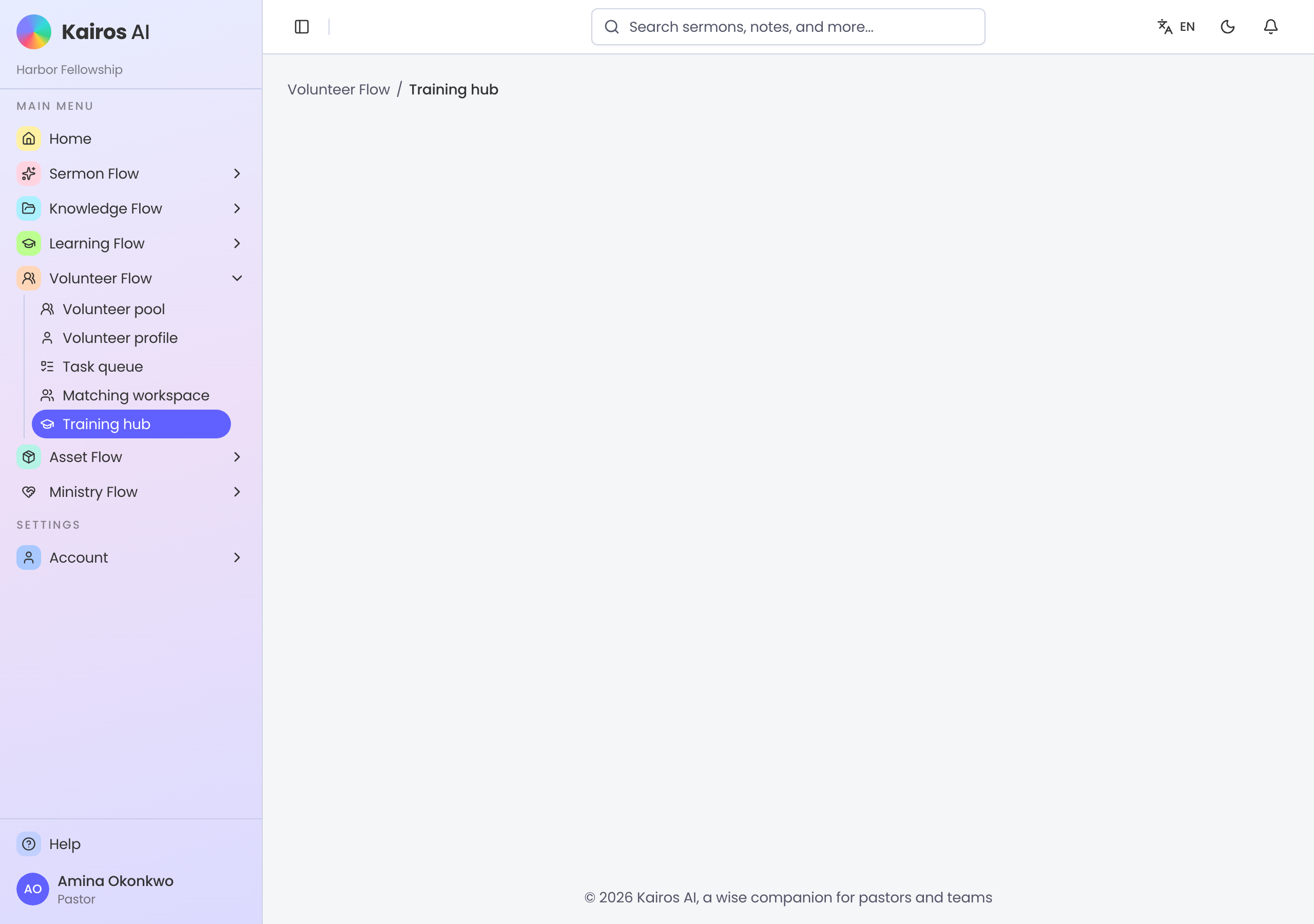
Training hub
Training hub lists certs, growth progress, and upcoming opportunities. Child-safety and background records still belong where the church already keeps them — Kairos shows training status beside the roster in this preview.
Serving path
- 1
List the pool
Add or open volunteers so skills and ready status are visible.
- 2
Post the need
Put Sunday or midweek tasks on the queue with priority and tags.
- 3
Match people
Use Matching to pair eligible volunteers to open needs.
- 4
Confirm the shift
Confirm or notify so the week roster is settled.
- 5
Check training
Open Training hub before placing someone in a sensitive role.